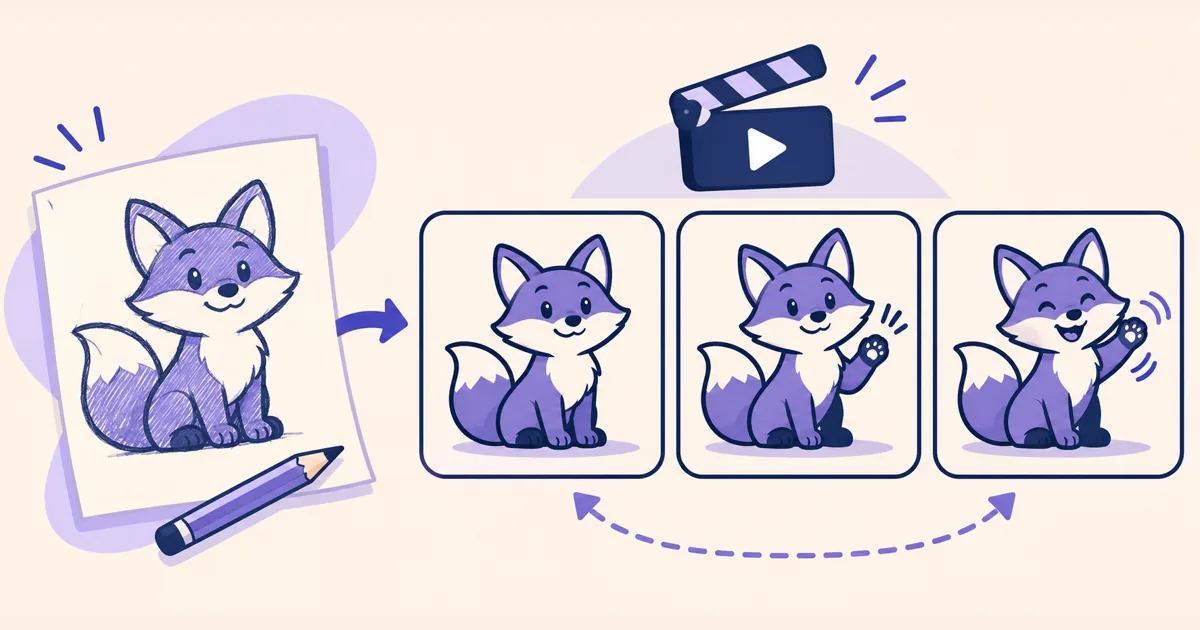
GPT Image 2.6 is available on Tellers for generating images, animated GIFs and SVGs. For video creators, a useful application is a small animated asset: a mascot waving at the end of an explainer, a reaction between sections or a visual idea to develop before making a longer scene.
OpenAI introduced Images 2.6 on November 4, 2026, including the Flare and Sunburst models. The announcement highlights GIF creation and more consistent image editing. Both variants are available through our OpenAI image generation tool.
Give the animation one job
Start with the place the asset will occupy in the video. An end-card character should leave room for the message. A reaction inserted after a joke should read immediately. A visual explaining a process may need a pause at the important step rather than a seamless loop.
For a simple mascot, supply an approved reference and choose one action. The useful constraints are the silhouette, colours, camera position and resting pose. Asking for a wave, a spin and a jump together makes the brief harder to review.
Using GPT Image 2.6 and my approved fox mascot reference,
create a short looping GIF for the end of a tutorial video.

The fox raises one paw, gives a small friendly wave, then returns
to its starting pose. Keep the camera fixed and the whole character
inside the frame. Preserve the face, colours and tail shape.
Use a plain cream background. Leave space on the right for a title.
Do not add words or logos.
The blank area is intentional. Keep your final message as editable text in the video, so a date or call to action can change without regenerating the character.
Choose the variant around the asset
OpenAI positions Flare for quick iteration and Sunburst for greater detail and consistency at medium or high quality. Treat that as a starting point for choosing a model, then judge the result against the actual brief.
A bold, simple mascot needs a readable gesture more than intricate fur. An illustrated product close-up may depend on smaller details. Request the level of finish that serves the shot rather than adding detail that disappears at its final size.
Review the animation through several repetitions. Look for a jump between the ending and starting pose, changing facial features, clipped paws and distracting background movement. Inspect it at the size it will have in the finished video; a gesture that looks clear full-screen may vanish beside a large headline.
Put the asset to work in the edit
Ask our agent to assemble the approved animation with the rest of your material by prompting:
Add the approved mascot animation to the ending of my tutorial.
Keep it on the left and add my exact closing message on the right
as editable text. Let the wave finish before the video ends.
Keep the closing voiceover clear and show me the playable timeline.
For a standalone MP4 version of a GIF, our free browser tools include a GIF-to-MP4 converter. For a complete generated scene with sustained action, our Omni 1.2 Flash guide covers a different workflow.
Open Tellers with a reference and a clear role for the animation. A single readable movement is often all the shot needs.
Frequently asked questions
Is GPT Image 2.6 available on Tellers?
Yes. Our OpenAI image tool supports GPT Image 2.6 Sunburst and Flare for images, animated GIFs and SVGs.
When should I use a GIF instead of a full video scene?
Use a short animation for a contained gesture, reaction or repeating visual accent. A scene with dialogue, camera movement and several connected actions needs a broader video brief.