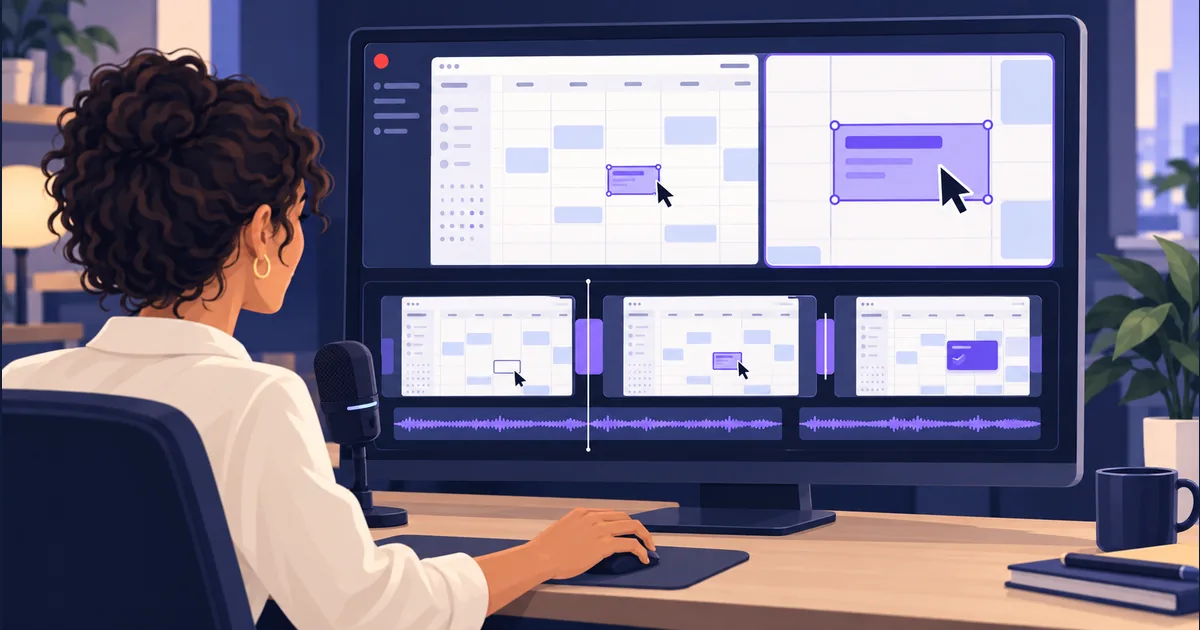
A screen recording captures everything you did: opening the wrong menu, waiting for a page, trying a second take and finally showing the feature. A product demo needs the part that helps someone understand why they would use it.
Tellers is AI for video editing: give it your recording and describe the finished demo you want. The agent can find relevant passages, assemble a timeline, add titles and captions, and refine the edit through chat. Start with the real screen capture so viewers see your product, not a generated approximation of its interface.
Show one useful result, not every feature
Choose a single task for the demo. “Show how a customer books an appointment” gives the edit a purpose. “Make a video of our scheduling platform” leaves it unclear which part matters.
For that appointment example, a short sequence could be:
- Briefly show the confirmed booking so viewers know the outcome.
- Show the customer choosing an available slot and confirming it.
- Return to the calendar with the new appointment visible.
You can leave out account setup and unrelated settings unless they are the point of the video. If the source is a long walkthrough, tell the agent which workflow to extract rather than asking it to squeeze every feature into a minute.
Use a recording made with demo data. Check notifications, browser tabs and account details before uploading. If a step is missing or the interface has changed, record that part again rather than asking the editor to invent what happened.
Record your walkthrough with the free Tellers screen recorder
Use the Tellers Screen & Camera Recorder to capture your product walkthrough. It is free, works in your desktop browser, and needs no account or installation. Your recording stays on your device until you choose to add it to Tellers for editing.
Choose the screen, window or tab you want to show, then enable your front camera and microphone if you want to explain the steps on camera. For a picture-in-picture recording, set the camera position, size and rounded corners before you start. Preview your setup, record the walkthrough, then stop and download your files.
For the most editing flexibility, download the separate screen and camera recordings and add both to Tellers. If you already like the layout, use the combined picture-in-picture video instead. Download your takes when you finish so you have permanent copies outside browser storage.
Give Tellers a concrete editing brief
Add the screen recording, any separate microphone or presenter recording, and the exact product name. Then adapt this prompt:
Turn this screen recording into a 45–60 second product demo
for our website. It is for [audience] who want to [task].

Show the finished result briefly at the start, then the essential
steps that produce it, and finish on the result again.

Use the real screen recording for all product UI. Do not recreate
screens, change button labels or invent actions. Remove retries,
unrelated menus and idle time without skipping essential steps.

Keep the active control and its result readable. Use a closer
view where useful, then return to a wider view for context.
Avoid constant zooming and do not cover the action with text.

Keep my recorded explanation where it helps. Add accurate captions
and short step labels using the wording below. If the recording
does not show something needed, flag it for me.

Make a landscape first cut for review.

Feature and audience: [details]
Essential steps: [list]
Step labels: [exact wording]
Final call to action: [exact wording]
The suggested duration is an editing target, not a rule. A workflow that needs more explanation should get it. For a silent recording, replace the narration instruction with “Use these step labels to explain the action; do not add a voiceover.”
This approach is used in our Tellers Basics series, which combines screen recordings, presenter footage and separate microphone audio. You can use the same editing workflow for your own software demo without copying the series’ visual style.
Make the interface readable and the edit honest
Review the demo at the size people will actually watch it. A button that is clear on your desktop can become unreadable in a small website player. Ask for a closer view of the relevant panel, but keep the navigation visible when viewers need to understand where they are.
Give specific feedback on the first cut:
Keep the opening result. In the booking step, show the date and time selector more closely. Leave the confirmation visible long enough to read, and move its caption below the interface.
Listen for narration that has drifted away from the action. “Click Confirm” should accompany that step, not the next screen. Check product names in the captions and make sure a cut has not removed the step that explains a change on screen.
It is fine to shorten waiting time in a demonstration, but do not present that edited sequence as evidence of processing speed. If elapsed time is part of the claim, show it accurately or make the omission clear.
For a vertical social version, ask for a separate edit focused on one action. A wide dashboard squeezed into a tall frame is rarely useful; a readable view of the control and its result is. Check that version on a phone before sharing it.
Keep the edit useful for the next release
When a screen changes, record the updated step and identify the section to replace:
Replace the booking confirmation section with this new recording. Keep the opening, pacing and caption style. Update the step label to “Booking confirmed” and check that the surrounding narration still matches.
For repeated demos, save the approved brief and style decisions. Our guide to faster AI editing with fewer tokens covers turning a successful format into reusable instructions.
If you only need to remove the beginning or end of a recording, the free video trimmer may be enough. To turn a walkthrough into a complete demo, open Tellers, add the recording and describe what the viewer should understand by the end.
Frequently asked questions
Can AI turn a screen recording into a product demo?
Yes. Give Tellers your screen recording and a brief describing the audience, feature and finished video. It can assemble a first cut, add titles and captions, and make revisions through chat. Use the original capture for the interface and review that the edit shows the workflow accurately.
Can I make a product demo without recording my voice?
Yes. A short demo can use concise on-screen labels to explain the action. Give the editor the wording for each step and leave enough time to read it. Tellers also supports generated voiceovers if you prefer narration; review product names and timing before exporting.
How do I make a desktop screen recording work in a vertical video?
Focus each shot on the relevant area of the interface rather than shrinking the entire desktop. Keep enough context to show where the action happens. If a wide view is necessary, use a fitted layout and a short explanatory label. Check the exported video on a phone.