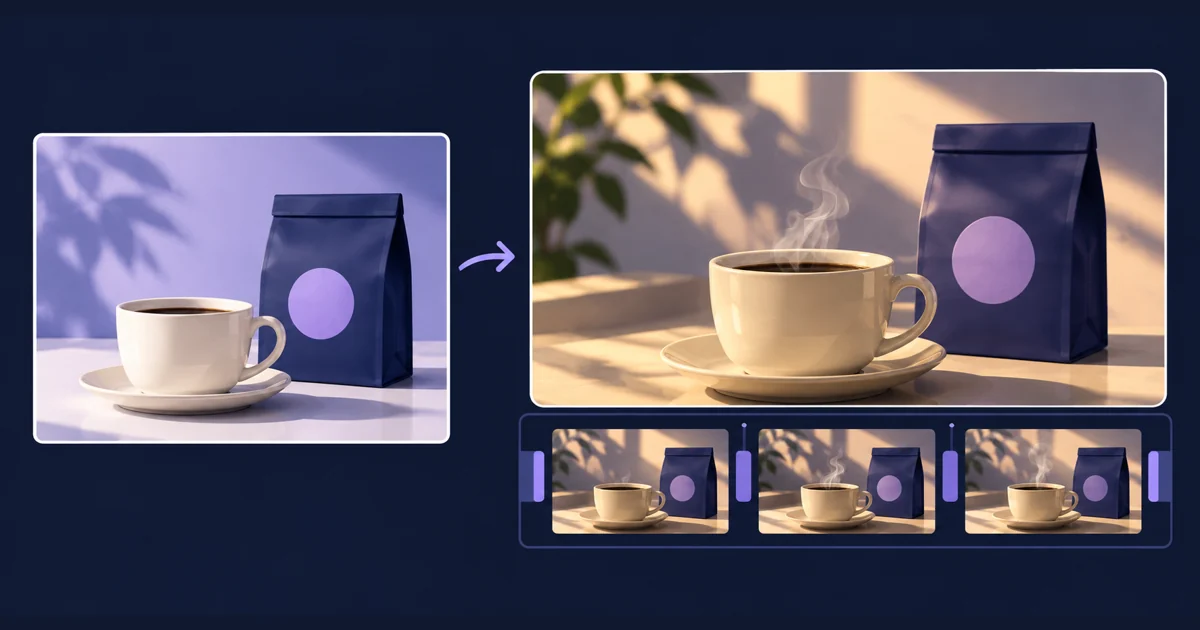
To animate a product photo with AI, supply the image, describe a small amount of motion, then turn the useful part of the generated clip into your finished video. A coffee bag might sit beside a steaming cup; a bottle might catch a moving reflection. The product should still look like the item your customer will receive.
Tellers brings generation and editing into the same workflow. Give the agent your product photos and describe the final video you want. It can generate footage, assemble the timeline and add your text and sound, with an edit you can refine by prompting or manually.
Start with a photograph that can carry the shot
Choose a sharp photo of the correct product variant, with the whole item visible and its label readable. Leave space around it for the intended framing. A tightly cropped square catalogue image may need a new composition before it works as a vertical ad.
For a coffee launch, supply coffee_front.jpg, your logo file, and the exact product name and offer. If you want to show the back of the bag, add a real back-view photo. A camera orbit around a single front view asks the model to invent surfaces you have not supplied.
Prepare and approve the still composition first if the setting needs to change. Tellers supports image editing with masks, which lets the agent protect a selected area while editing its surroundings. Check the resulting still before animating it: a mask used during image editing does not lock those pixels throughout a later video generation.
Give the motion prompt one clear job
In image-to-video generation, the picture supplies much of the visual direction. The prompt should explain what changes over time. Runway’s image-to-video prompting guide makes this distinction between the input image and the motion described in text.
These are starting briefs to adapt to your product, not tested presets. Try one at a time and review a short result before requesting more shots.
A gentle move toward the product
Use coffee_front.jpg as the visual reference for a short product shot.
The camera slowly moves closer to the coffee bag on the counter.
The bag stays upright and still, with its front label facing us.
Keep its shape, packaging colour and printed design consistent
with the reference. End with the whole bag still inside the frame.
Use this when the packaging is the main subject. If all you need is a slow enlargement of the photo, ask for a zoom on the editing timeline instead. That avoids regenerating the label just to make it appear closer.
Movement around a stationary product
Use the supplied coffee-and-cup image as the starting composition.
Keep the camera fixed. A thin curl of steam rises from the cup,
while a soft leaf shadow moves slowly across the wall behind it.
The cup, saucer and coffee bag remain stationary.
Keep the product label clearly visible throughout.
This gives the scene a reason to move without asking the package to open, bend or rotate. Choose movement that belongs in the setting: steam for a hot drink, fabric moving beside clothing, or a reflection crossing a glossy surface.
A controlled lighting change
Create a short shot from bottle_front.jpg with a fixed camera.
A narrow studio light reflection travels slowly across the glass.
The bottle stays in the same position and keeps the same silhouette.
The front label remains evenly lit and readable as the reflection
passes beside it. Finish with a clear view of the product.
The point is a single lighting event, not a complete scene transformation. Review the bottle’s edges and the reflection as well as the text. If the lighting makes a white label look gold, simplify the brief.
Build a product ad around the approved shot
A generated clip is one piece of an ad. The opening, offer and ending can be edited separately, so you do not have to regenerate the product every time the copy changes.
For example, ask Tellers:
Make a 12-second vertical launch video for our coffee from the
supplied product photos and approved product shot.

Open with the steaming-cup shot. Add the editable headline
"Your morning, freshly roasted". Cut to the original front photo
with a gentle timeline zoom, then finish on our supplied logo
and the text "Explore the new roast".

Use only the supplied product name and approved copy.
Keep the product fully visible. Add a quiet music bed.
Show me the first edit before making additional generated shots.
If you still need generated footage, you can ask the agent to use Seedance 2.5 with your images as references. ByteDance documents its image-reference capabilities; reference support does not guarantee an exact reproduction of packaging. Ask the agent to confirm the available settings and token estimate before generation.
Once the shot works, changes such as “hold the product name longer” or “bring the logo in earlier” belong on the timeline. Our guide to reducing AI video editing costs covers planning stills before generating motion and reusing an approved workflow.
Check what the video says about the actual product
Watch the complete clip, then pause where movement or lighting changes most. Compare the lettering, package shape, colour, cap, handle and any visible accessories against the original. A correct opening frame is not enough.
Keep the distinction between atmosphere and demonstration clear. Steam beside a coffee bag creates a mood. A generated shot of a lid opening or a tool performing a task makes a claim about how the item works. Use real footage when customers need to judge that behaviour.
If a label changes halfway through, shorten the shot to a clean section, try simpler motion, or use the original photo with a timeline animation. Add prices and promotional copy as editable text rather than asking a video model to print them into the scene.
Open Tellers, add a product photo and describe the video you want to make. Start with one useful shot; build the message around the version you approve.
Frequently asked questions
Can I make an AI product video from one photo?
Yes. An image-to-video model can use your product photo as a starting point or visual reference and generate motion from a prompt. One photo is a useful starting point for a short shot. For another angle, supply a photograph of that angle instead of expecting the model to reconstruct unseen packaging accurately.
How do I keep my logo and product label accurate?
Use a clear reference, ask for restrained movement, and inspect the whole result. A preservation prompt is direction, not a guarantee. If exact packaging matters, use the original product image on the editing timeline with a gentle zoom, or real footage. Add headlines, prices and calls to action as editable text.
Is animating a product photo the same as making a slideshow?
No. Image-to-video generation creates new frames with movement inside the scene. A slideshow or a timeline zoom moves between, or across, existing images. The latter is often enough when you want motion while keeping the photographed product unchanged.