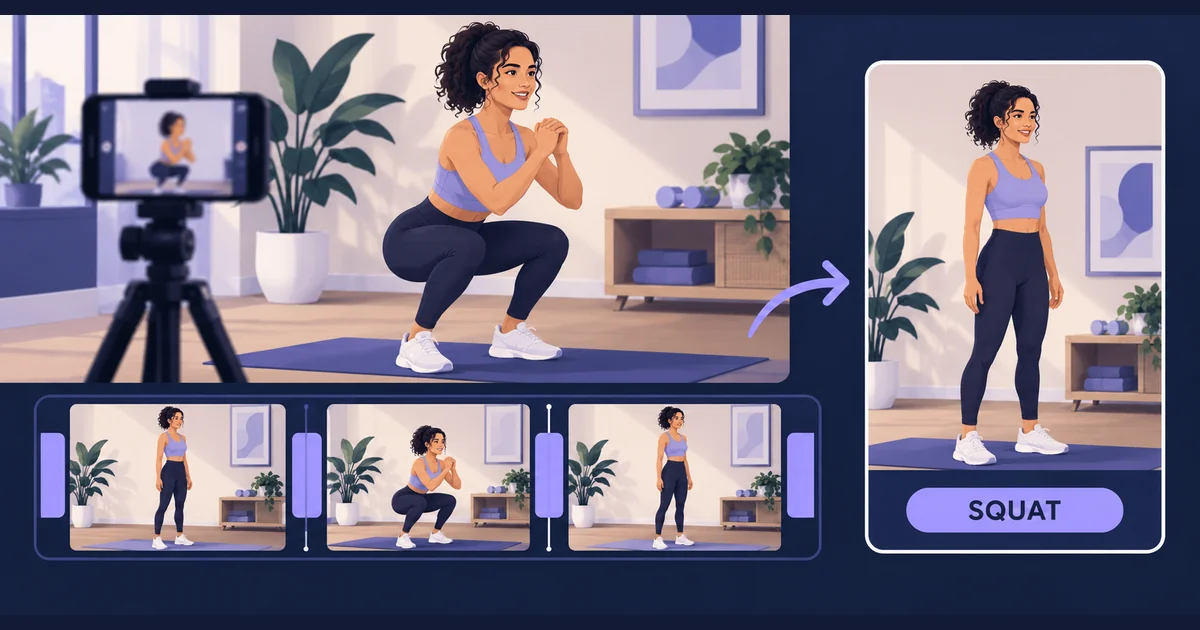
A workout montage can cut on every beat. An exercise tutorial needs to show what happens between those cuts: the setup, the movement and the return to the starting position.
To edit exercise tutorial videos with AI, give the editor your recorded demonstrations and coaching notes, then ask for complete repetitions at their original speed. Remove the recording setup and retakes, keep the movement visible, and add only the instructions you want to teach.
Tellers is AI for video editing: give it your footage and describe the final video you expect. It can find relevant moments, assemble a timeline, add titles and captions, and refine the result through conversation. For a personal trainer building an exercise library, that means turning a filming session into individual, editable tutorials with a consistent presentation.
Decide whether viewers are learning or following along
A short demonstration and a follow-along workout need different editing instructions. This choice matters more than the transition style.
| Video you are making | What the edit should preserve | What you can shorten |
|---|---|---|
| Exercise tutorial | Setup, complete repetitions and the explanation of the movement | Camera adjustments, retakes and repeated explanations |
| Follow-along workout | The intended work periods, rest periods, transitions and coaching | Setup before the session begins and dead time after it ends |
| Promotional gym Reel | The moments that communicate the session or atmosphere | Repetition, if the result is clearly a montage rather than a followable workout |
For a tutorial, showing two clear repetitions may teach more than a long set. For a follow-along session, those same cuts could remove time the viewer is meant to spend exercising or resting. Tell the agent which format you want before asking it to “remove the pauses.”
If you include a countdown in a follow-along video, check it against the final exported duration of the work or rest interval. A timer should describe the edited video, not the length of the original recording.
Build the tutorial around a complete movement
Imagine you filmed an introduction, a front view, a side view and a second take of a squat demonstration. Start by identifying the takes you want to teach from. Simple file names such as squat_front_take_2 and squat_side_approved make that direction easier to give.
A useful first cut might show the setup, two uninterrupted repetitions from the clearest angle, then a second view while you explain one specific cue. Keep at least one full repetition in a continuous shot. If you switch angles, do it between repetitions or at a clearly matching point in the movement, rather than hiding the transition from lowering to standing.
Keep the main demonstration at normal speed. A labelled slow-motion replay can support a particular explanation, but it should follow a real-time example. Avoid speed ramps through the movement when viewers are trying to understand its timing.
Add the recordings to Tellers and adapt this prompt:
Make a vertical exercise tutorial from these recordings for my
training clients. Aim for about 30–45 seconds, but keep the
demonstration complete if it needs longer.

Exercise: [name]
Approved takes: [file names or timestamps]
Coaching cues: [my exact wording]

Show the setup, then two complete repetitions at original speed.
Use the clearest angle for the full movement. Add a second angle
only where it helps explain one of my coaching cues.

Remove camera setup, retakes and repeated introductions. Keep
the start and finish of each selected repetition. Do not change
the movement, generate replacement footage or invent coaching.

Keep the full relevant movement in frame throughout. If a tight
vertical crop loses it, fit the whole shot into the layout.

Add the exercise name and my cues as short, readable labels.
Caption my spoken explanation and keep it clearly audible.
Make a first cut for review; flag any missing shot or unclear cue.
The duration is a starting brief, not a reason to rush the explanation. Replace the example structure with your own teaching sequence when an exercise needs more context.
Frame the movement, not just the person at rest
A crop that looks good in the opening frame may lose the hands during an overhead reach or the feet when the stance widens. Review the full movement in the final aspect ratio before approving the framing.
For wide movements, fitting the landscape recording inside a vertical canvas can be more useful than filling the screen. Place the exercise name and a short cue in the spare space. Let the picture stay large enough to read, but do not trade away the part of the body or equipment the viewer needs to see.
Use a revision tied to a visible problem:
In the side-view section, the crop loses my heels at the bottom of the movement. Widen the view for the entire repetition. Keep the cue above the footage, and remove the zoom during the demonstration.
Avoid flipping a shot simply to improve the composition when the instruction refers to left or right. If you deliberately use a mirrored view for a follow-along format, make the spoken directions and labels consistent with that choice.
Give captions and coaching cues different jobs
Captions reproduce what you say. Coaching labels draw attention to the point you want viewers to notice. Putting the full spoken sentence and several extra instructions on screen at once can obscure both the demonstration and the message.
Use your coaching notes as the source for labels. Show one cue during the relevant action, and check it against the spoken explanation. If you specify repetitions, hold times or equipment in the video, supply those details explicitly rather than asking the editor to infer a programme from the footage.
Watch the cut once with sound and once muted. The voice should be clear over any music; the silent version should still identify the exercise and make the visual sequence understandable. Keep text away from the moving body and check the destination app’s preview for controls that could cover it.
Tellers keeps video, audio, titles and graphics editable on separate tracks, as shown on the Tellers Video Player page. You can ask to move a label, restore a few frames or lower the music without rebuilding the whole tutorial.
Turn an approved edit into a repeatable exercise library
Once the first tutorial feels right, save its instructions: opening length, number of repetitions, label placement, caption style and ending. Our guide to faster AI editing with fewer tokens explains how to turn a successful conversation into a reusable editing brief.
For the next batch, give the agent a list of exercise names, approved takes and cues, and ask for one short video per exercise using that brief. Review each movement separately: a layout that fits a squat will not necessarily fit a floor exercise or an overhead movement. Tellers’ course-creator workflow supports assembling multiple lessons and clips from a filming day, while you review the teaching content.
If you only need to remove the beginning and end of one demonstration, use the free video trimmer. For a complete tutorial with selected takes, captions and coaching labels, open Tellers, add your footage and describe what your clients should see.
Frequently asked questions
Can AI edit my workout videos into exercise tutorials?
Yes. Give Tellers your recorded demonstrations, the exercise names and your coaching notes, then describe the finished videos you want. It can assemble the footage, add captions and titles, and revise the edit through chat. Review the selected takes and instructions yourself; the editing brief should come from the trainer.
How do I make a workout video vertical without cutting off my feet?
Check the framing across the entire movement, including the highest reach and widest stance. If a 9:16 crop cannot contain the action, fit the complete source image inside the vertical layout with space around it. Use that space for labels instead of covering the demonstration.
Can I trim an exercise clip for free?
The free Tellers video trimmer lets you select the beginning and end of a clip in your browser, without uploading it or creating an account. Keep a complete repetition inside the selection. For multiple takes, coaching labels and a finished tutorial, use the full Tellers AI editor.