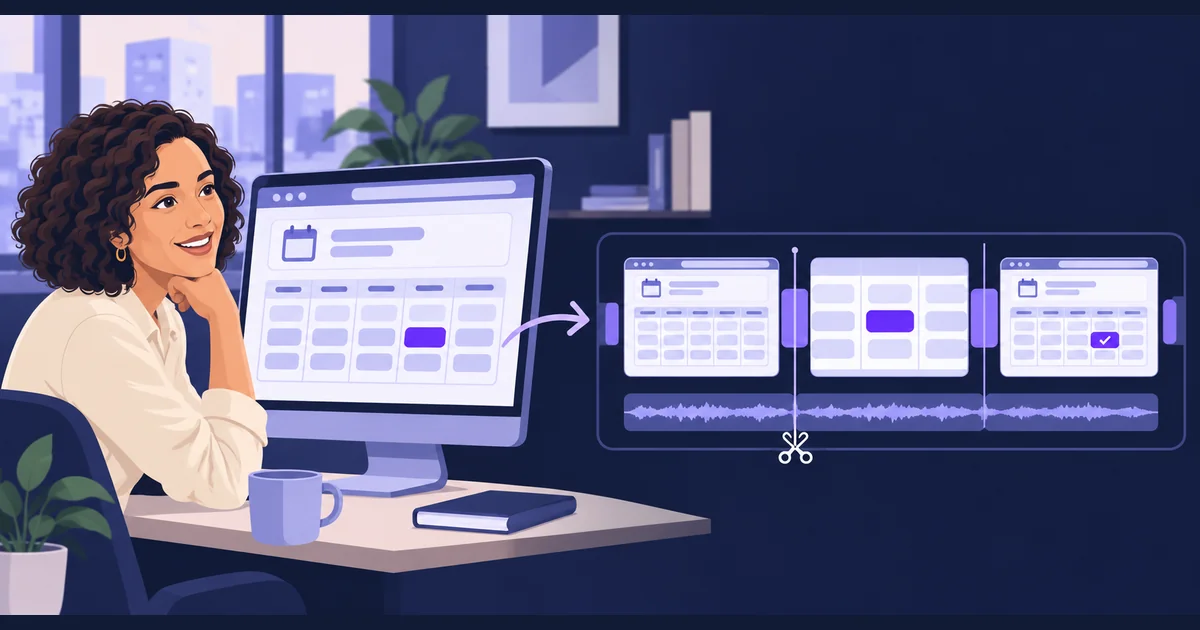
To turn a webpage into a video, open it in Chrome, click Tellers — Video Creation and describe the video you want. Our extension uses the page link to start an editable project in Tellers. You can also send visual references from the page or record the screen yourself.
The choice depends on what you’re trying to show. A link helps explain what the page says. A capture helps show what it looks like. A recording shows what happens when someone uses it.
Turn a link into a teaser or explainer
Install the extension and pin it to your toolbar. Open a page you want to use, launch the sidebar, and select Page to video. Connect your Tellers account, write a brief, and use Turn this page into a video. You can set an approximate duration and format, then confirm the generation budget.
Start with the link for a public article or landing page. If the design, product visuals or page layout matter, add an optional screenshot or scrolling capture. The screenshot takes the visible part of the page; the scrolling capture gives Tellers more visual context. Keep the source tab and sidebar open during capture, and make sure you’re comfortable sharing everything visible.
For example, use this brief to turn a scheduling product page into a short teaser:
Make a 30-second landscape teaser from this product page for
freelancers who schedule client calls. Open with the problem:
too much back-and-forth to find a time. Show the booking page
from the supplied material, then explain what the client does.

Use only features and claims supported by the page.
Do not invent interface screens or customer quotes.
End with a short invitation to view the product.
For an article, give the agent the main idea to explain and one example to keep. A useful video can focus on a single takeaway instead of reciting the whole page.
Record the actual steps when they matter
A landing page can tell people you offer booking. It can’t show how to choose a time and confirm it unless the source includes that sequence. To make a demo, switch to Screen recording, choose what to share, and walk through it yourself. Add a microphone or webcam if you want to explain the steps as you go.
Record in a demo account when possible. Pause briefly on the result before stopping so the edit has a readable ending. You can download the recording without signing in, or connect your account and send it to Tellers for editing. Our screen recording to product demo guide has a detailed prompt for turning that footage into a finished walkthrough.
Bring in references and keep editing
If you find an image or video you’re allowed to reuse, right-click it and choose Add to Tellers to save it to a folder, or Make video from this to start a brief around it. On a Pinterest board, the extension can collect accessible images and supported videos, though some pins may not be available. Protected media and restricted downloads aren’t supported.
The sidebar lets you follow your edit and preview a completed result. Open the chat or project in Tellers to change the pacing, replace a shot or sharpen the closing line. That’s vibe editing with the browser as your starting point.
Add Tellers to Chrome and try one page you already know well.
Frequently asked questions
Can I turn a webpage into a video without recording my screen?
Yes. Open the page and choose Page to video in the Tellers Chrome extension. Tellers can start with the page link and your brief. Add a screenshot or scrolling capture when the layout or visuals matter.
Do I need a Tellers account to record my screen in Chrome?
No. Local screen recording and downloading work without a Tellers account. Connecting an account is required to upload recordings or create an AI edit. AI creation uses Tellers credits and shows a budget before generation.
Can I turn a page behind a login into a video?
Tellers may not be able to read the page from its link. If you have permission to share it, attach a screenshot or scrolling capture for visual context, or record the specific steps you want to show. Use demo data where possible.
Can I edit the generated video after it is ready?
Yes. Follow the job in the extension sidebar, then open its chat or project in Tellers to revise the edit and work with the timeline.