To make a GIF from a screen recording, capture one action, keep a few seconds around it, then convert the excerpt to GIF. Our free MP4 to GIF converter lets you set the start time, duration and width. It runs in your browser without uploading the file.
For a help article, a good loop answers one question: Where do I click, and what should I see next? A GIF works well for a menu opening, a setting turning on or a row moving to a new position. If readers need to study a screen or follow several steps at their own pace, give them a screenshot with written steps or a video they can pause.
Record the click and its result
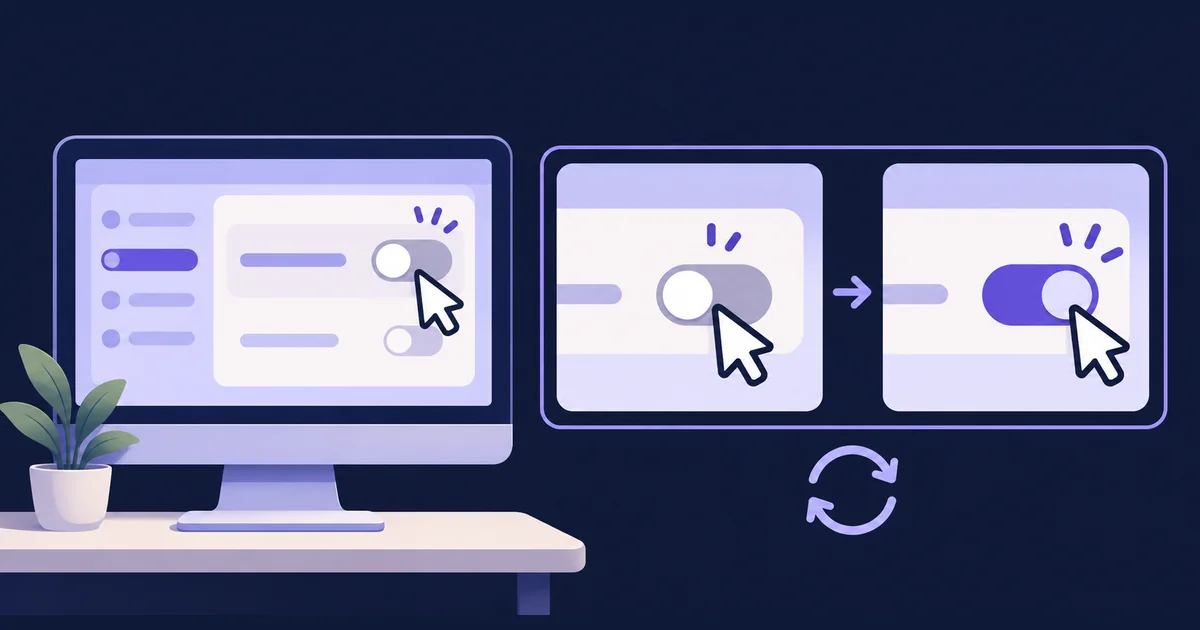
Suppose you’re showing readers how to turn on email notifications. Begin with the settings panel already open and the toggle off. Move the cursor to the toggle, click once and hold on the enabled state long enough to see the change. Give the viewer a moment to read the label before the click, too. Where the panel lives can go in the sentence above the GIF.
Record just the window or browser tab you need. Zoom in before recording if labels are small, and close unrelated panels. Use a demo account or dummy data when a workspace shows customer names, email addresses or other private details. If you need to record from scratch, use our Screen & Camera Recorder in a desktop browser. You can leave the camera and microphone off.
Convert the part that teaches the step
If you have an MP4 already, open MP4 to GIF and select it. For WebM or MOV, use our browser video trimmer to keep the action and download an MP4. If trimming is all you need before conversion, there’s no reason to recapture your screen.
- Set the start and duration. For example, if the settings panel is ready at
00:00:07and shows the finished state through00:00:12, enter a start of00:00:07and a duration of 5 seconds. If you’ve already trimmed to that excerpt, start at00:00:00. - Start at 480 pixels wide. Download the GIF and look at it in the page where it will appear. If the toggle label is too small, tighten the recording around the panel before switching to 640 pixels. Scaling a full desktop down to a GIF makes every label smaller along with it.
- Watch across the loop. Make sure the last frame shows the result before playback resets. If it looks like the toggle turns itself off, hold on the result longer or use a video that plays once.
If the GIF is too large for your help center, remove idle time first. If the label still needs a large image or the action takes several seconds to explain, keep the MP4 and use the site’s video player.
Put the instruction in the article too
Write the step next to the image: “In Settings → Notifications, turn on Email alerts. The toggle changes to On.” That gives readers the same instruction even if the GIF doesn’t load. If your page autoplays a repeating GIF alongside text, use a player or page control that lets readers pause or hide the motion; a short loop can still repeat indefinitely. See the W3C guidance on automatic motion.
Convert your screen recording to a GIF. For a longer walkthrough that needs a few recordings, narration and an editable cut, see our guide to making a product demo from screen recordings.
Frequently asked questions
Can I make a GIF from a screen recording without uploading it?
Yes. Our MP4 to GIF converter processes the recording in your browser. Select a local MP4, choose the excerpt and width, then download the result. No account is needed.
How do I make a screen recording GIF smaller without making text blurry?
Shorten the clip and remove unrelated parts of the frame before reducing the output width. Labels will be more readable in a tight 480-pixel recording than in a full desktop scaled to the same width.
Can I turn a WebM screen recording into a GIF?
Yes. The GIF converter takes MP4. Use our free video trimmer to select the relevant portion of your WebM and download it as an MP4, then convert that file.