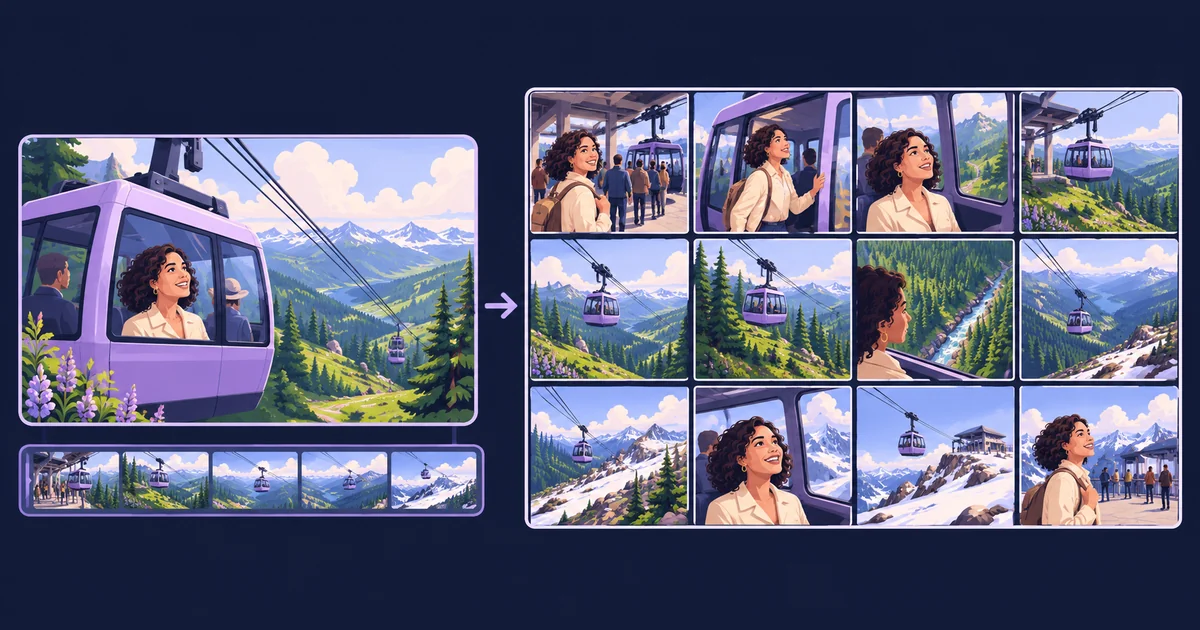
A video contact sheet puts sampled frames in one image, in reading order. It gives a vision-capable AI model a way to inspect the pictures even when it can’t open the video itself. Use our free Video to Contact Sheet tool to make the grid in your browser. The source video stays on your device.
A contact sheet is useful when you want to ask, “Where does this walkthrough switch from the presenter to the product?” It can show the visual progression at a glance. It can’t tell you what was said, and it can miss a quick action between samples. Pair it with a transcript if you need the words.
Make an overview, then sample the moment you need
- Choose a video and set the grid. Start with three rows and four columns. The tool takes 12 samples. When you leave the timestamps blank, it divides the video into equal intervals and takes a frame from the middle of each.
- Look for a useful section. Open the exported PNG and read left to right, row by row. If your AI model identifies a promising change, go back to the video for that section rather than treating a cell as a confirmed edit point.
- Make a closer sheet. To inspect the area around the 20-second mark, enter two rows, three columns and the list
19, 19.5, 20, 20.5, 21, 21.5. Supply one timestamp in seconds per cell. The tool keeps the order of your list.
Give the AI model the grid size and tell it what it should return. For example:
This is a contact sheet with 3 rows and 4 columns.
Read it left to right, then top to bottom. Identify where the
video first switches from a person speaking to a software demo.
Give me the row and column, what is visible there, and the
adjacent cells I should check. Don't infer dialogue or motions
that aren't visible in the sheet.
What a 100 × 100 grid looks like
The image below is a 100-row, 100-column sheet of the Tellers Skills demo. It shows 10,000 samples, with stretches of similar shots forming bands and the more obvious changes breaking up the pattern. A grid this dense is useful for seeing the shape of the whole edit. It makes each frame too small for details like on-screen text, especially if your AI tool shrinks the image again.
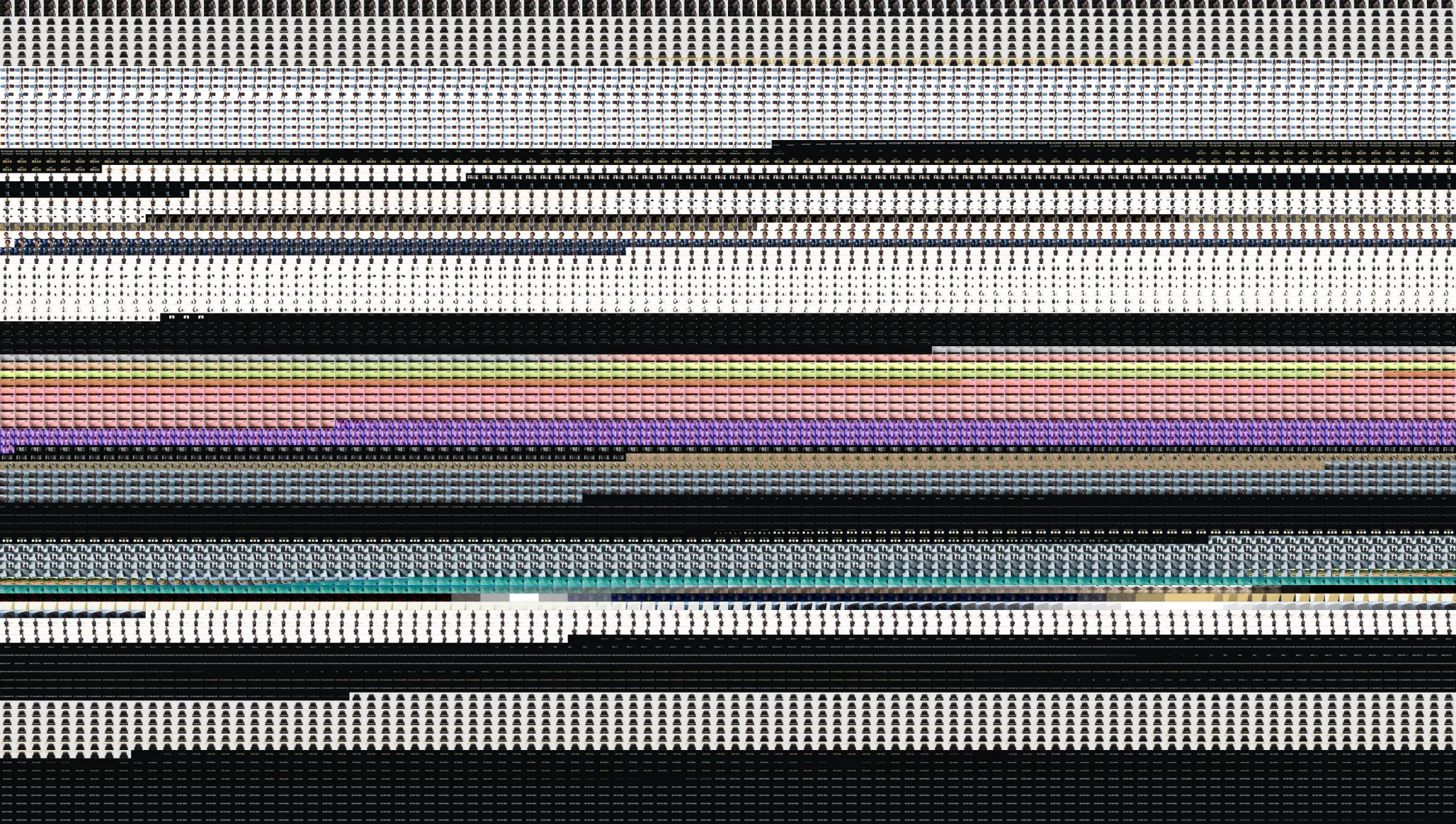
For a rough cut, start smaller. Use the overview to find a promising range, then give your editor a handful of larger frames and the source video to check. Large sheets can take longer to generate and a series of similar cells may all show the same underlying frame. Grid size is a sampling choice, not a count of unique cuts.
Make a contact sheet from your video. If your agent can use tools in an open browser page, see how our WebMCP tools work.
Frequently asked questions
For image-based workflows, see Claude Code’s guide to working with images, Codex image inputs and our video contact sheet tool for connected agents.
What is a contact sheet?
A contact sheet is one image containing a grid of smaller images. A video contact sheet uses frames from the source video, usually laid out from left to right and top to bottom so you can follow the sequence.
Why do AI models use contact sheets?
A contact sheet lets a model with image input compare several moments in one view, even when it cannot open the video file. It is useful for spotting scene changes or finding candidate shots. It does not include sound and can miss action between sampled frames.
How do Claude and Codex understand videos?
One practical workflow is to give Claude or Codex sampled video frames as images, with their source timestamps and a transcript if speech matters. You can prepare those images yourself or use an available video analysis tool to sample the frames. The agent reasons from the evidence it receives; it does not automatically see every frame or hear the audio in a contact sheet.
How do I create a contact sheet from a video?
Open the free Tellers Video to Contact Sheet tool, select a video and choose the number of rows and columns. Leave the timestamps blank for even sampling or enter one time in seconds per cell. Generate the sheet and download the PNG. The source video stays in your browser.