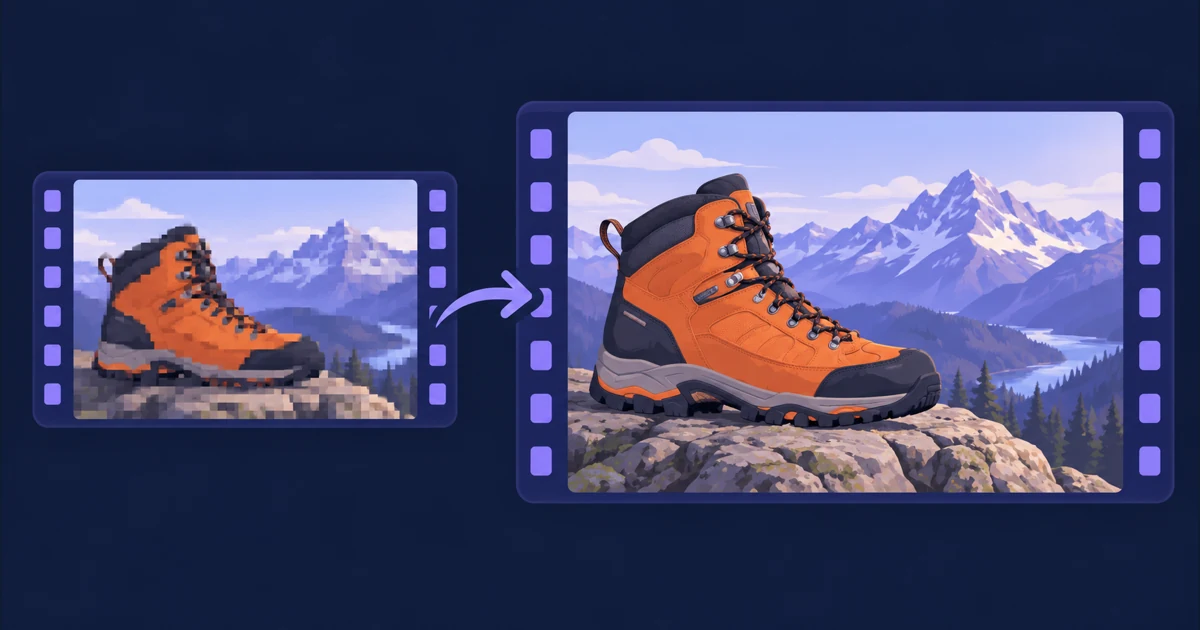
Pruna’s new P-Video-Upscale is now available in Tellers, adding a finishing step for AI-generated clips and existing footage. As of 30 October 2026, the Tellers tool catalogue lists four output resolutions: 720p, 1080p, 2K and 4K.
The practical benefit is simple: when a shot already has the right composition and movement, you can upscale that version instead of generating another take just to get a larger output. For marketing videos with AI, that lets you keep the creative decisions you have already approved.
What the new model adds
Pruna describes P-Video-Upscale as a video-to-video model that increases resolution while preserving the original aspect ratio and audio. It is distinct from P-Image-Upscale, the still-image model covered in our earlier Pruna integration overview.
This is a separate operation from AI video generation. A generation model creates the shot; the upscaler works on the resulting video. That makes it useful after you have selected a take, whether you made it with Seedance, another supported model, or a camera.
Higher output resolution does not settle every quality question. An upscaler should not be treated as a fix for incorrect product geometry, unreadable lettering or an unwanted movement. Check those problems before spending on the finishing pass.
Approve the shot, then upscale it
For a short product video, first choose the shot that gets the product and action right. Decide how long it needs to remain on screen and which delivery resolution the project actually needs. Then ask the Tellers editing agent for the upscale:
Use P-Video-Upscale to upscale my approved product clip to 4K.
Keep the original file and save the result as a separate version.
Show me the result before replacing the clip in the timeline.
Keep the existing edit, titles and audio mix unchanged.
Review the result at the intended viewing size and inspect a few frames closely. Pay attention to logos, fine edges and textures; then play the whole shot to check that the detail stays consistent during movement. A sharper still frame is only part of a successful video result.
Keep titles and graphics editable in the timeline where possible, rather than baking them into a low-resolution source before upscaling it. That leaves you free to change the wording or layout at the final delivery size.
A finishing step inside the edit
With Tellers, the upscale can sit in the same conversation as shot selection, assembly and revisions. You provide the footage or generated clips and describe the final video; the agent works on an editable timeline.
To control spending, reserve finishing work for the clips that survive the edit. Our AI editing cost guide explains the broader approach: explore first, approve the direction, then spend on the final assets.
Open Tellers and upscale an approved clip.
Frequently asked questions
Can I upscale an AI-generated video to 4K in Tellers?
Yes. The available P-Video-Upscale tool accepts an existing video and offers 720p, 1080p, 2K and 4K output. Ask the editing agent to upscale the approved clip to your chosen resolution, then review it before using it in the final edit.
Is AI-upscaled 4K the same as native 4K footage?
No. Upscaling increases the output resolution using an existing source. It does not recreate the information a camera or generation model would have captured at native 4K. Check faces, text, product details and motion rather than judging the result by resolution alone.