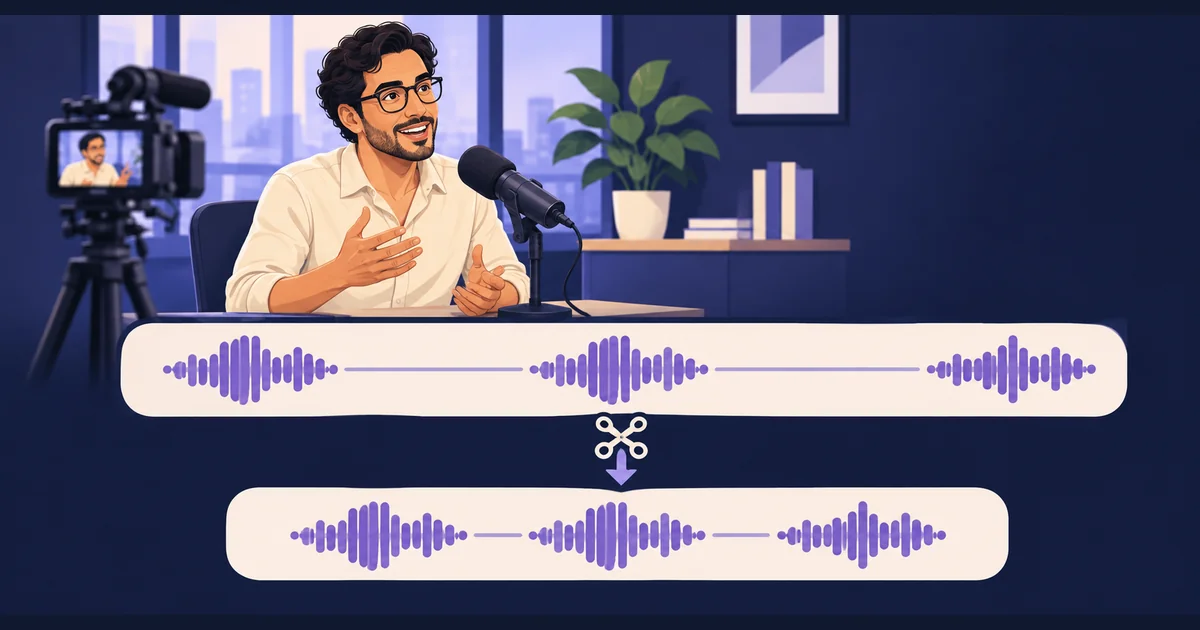
To remove pauses from an interview video, detect quiet gaps, keep a small buffer around speech, and review each proposed cut before exporting. A pause while someone waits for the next question can go. A hesitation before an important answer may deserve to stay.
Our free Remove Silence tool handles the first pass in your browser, without uploading the recording or requiring an account. It cuts picture and audio together. This is level-based detection, not speech recognition: you decide which silences are expendable.
Start with the right recording
Choose a single-camera interview or an already assembled video with its intended speech on the first audio track. Keep an untouched original. The tool exports the first video and audio streams; it does not preserve additional microphone tracks or subtitles.
For a multicamera interview, keep the sources synchronized in your editing project. Independently removing pauses from each camera would give them different timing. Use the browser tool on an assembled version when you no longer need those separate tracks.
Choose a file under 300 MB. If the recording has constant background music, use a version without that music: the detector measures sound level, so music can prevent a gap between words from registering as silence.
Set three controls, then listen
Open the file and start with the tool’s defaults:
| Control | Starting value | What it changes |
|---|---|---|
| Silence threshold | −40 dBFS | How quiet audio must be to count as silence |
| Minimum pause | 0.5 seconds | How long that quiet interval must last before it is flagged |
| Keep around cuts | 0.1 seconds | The buffer retained around speech at a cut |
Click Find pauses. The results show each pause’s start and duration. Click a start time to hear the original recording around it.
If a quiet word is flagged, lower the threshold, for example from −40 to −50 dBFS, and scan again. More negative values treat less audio as silence. If short conversational beats are being flagged too often, increase the minimum pause. If a cut feels cramped, increase Keep around cuts to leave more breathing room.
Change one setting at a time. A whisper needs different treatment from a loud answer; a single setting cannot understand why the speaker slowed down.
Keep the pauses that carry meaning
Detected pauses are selected for cutting initially. Uncheck a row to keep it, or choose Keep all and select only the obvious dead air.
Listen through the whole answer when a pause changes its tone. Consider “I thought it would work” followed by a long beat before “but it didn’t.” Removing that beat may make the answer faster while weakening its point. Similarly, leave room for laughter, an emotional reaction or a guest searching for a careful answer.
For a practical first pass, remove waiting time before an answer and long gaps between completed topics. Preserve ordinary breaths inside sentences. The aim is a tighter conversation that still sounds like the person who gave it.
For spoken fillers and repeated phrases, upload the video to Tellers and ask: “Remove filler words, repetitions and false starts. Keep the meaning intact and the delivery natural.”
Review the shortened video before AI editing
Click Remove selected pauses, then play the shortened recording. Listen for clipped word endings and abrupt changes in room sound. Watch the picture too: an otherwise clean audio cut may create a distracting jump in the speaker’s pose. Restore that pause if the cut does not earn its place.
Download the MP4 when it works; audio-only inputs export as WAV. For very cut-heavy recordings, the tool limits exports to 64 remaining sections and scans to 200 detected pauses. Increase the minimum pause or work with a shorter excerpt if you reach those limits.
For the next editorial pass, upload the reviewed video to Tellers and give our editing agent a specific brief:
Use this shortened interview to create a 60-second clip around
one complete answer. Preserve the speaker's meaning and natural
hesitations. Do not remove every remaining pause.

Keep picture and speech together. Add captions timed to this
version, and show me the playable rough cut for review.
That is where vibe editing becomes useful: describe the editorial result, then refine the cut. Our interview rough-cut guide covers selecting the story once unnecessary waiting time is out of the way.
Frequently asked questions
Can I also remove filler words and repetitions?
Yes. Upload your video to Tellers and ask the agent: “Remove filler words, repetitions and false starts. Keep the meaning intact and the delivery natural.” The free browser tool focuses on quiet gaps; the Tellers agent can make these speech edits from a simple prompt.
Should I remove pauses before generating subtitles?
Generate or retime subtitles against the shortened recording. Removing a pause shifts everything after the cut, so subtitles timed to the original will no longer align. Keep the original file separately if you need its source timestamps.