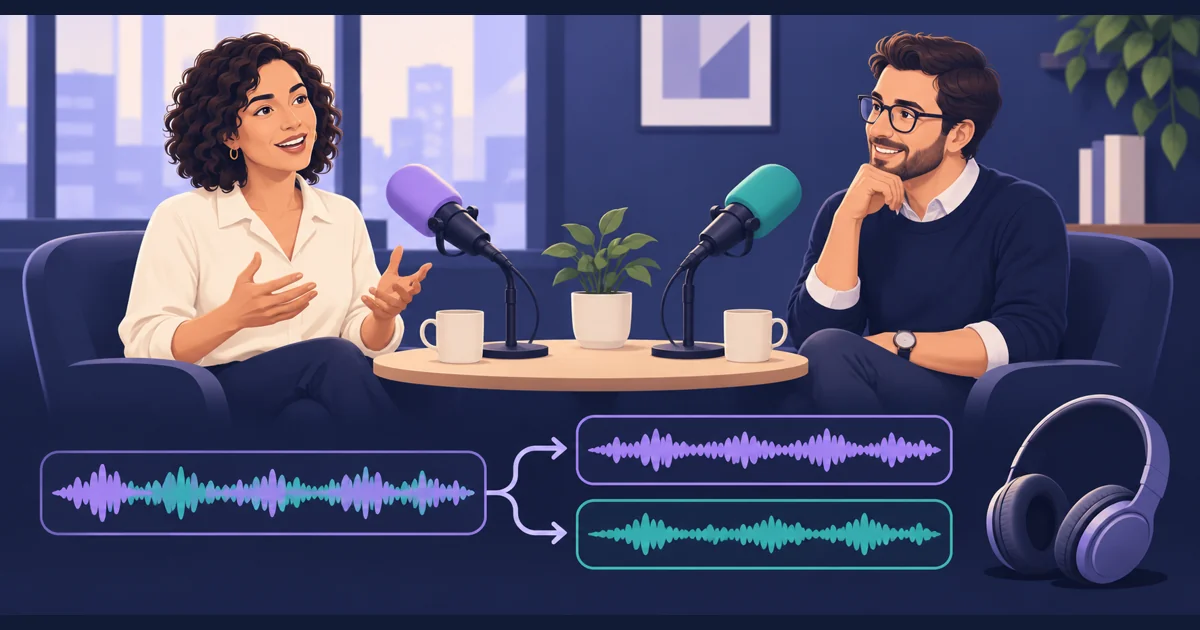
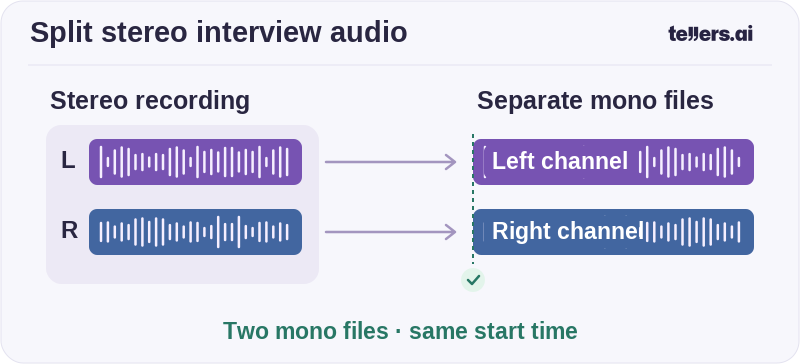
If your interview has one microphone on the left channel and another on the right, split the stereo recording into two mono tracks before editing. You can then raise a quiet guest independently, reduce noise on the unused microphone and keep both voices centred in the finished video.
Our free Audio Channel Repair tool does the split locally in your browser. Then upload the separate tracks and original video to Tellers and ask our editing agent to build the interview cut.
Check what the two channels contain
Two microphones do not automatically mean two separate recordings. Some receivers combine both voices before sending audio to the camera. Others put one microphone on each side of a stereo file. RØDE’s two-microphone recording guide explains this left/right arrangement and why it lets you mix the sources independently.
Listen to each side. If the interviewer is clear on the left and the guest is clear on the right, you have useful separation. A little room sound or microphone spill is normal; splitting channels does not remove it.
If both sides contain the same combined conversation, two exported files will still contain that conversation. And if the second channel is a quieter safety copy of the first microphone, label it as a backup rather than as another speaker.
Export the microphone tracks
- Open Audio Channel Repair and select your recording. The tool accepts common audio and video formats, including WAV, MP3, MP4 and MOV, with a 300 MB file limit.
- Use Inspect channels to see whether the left and right channels contain signal. The measurements help identify a silent side; listening tells you which person it belongs to.
- Under Channels, choose Split into two mono files, then select Export audio.
- Preview the two results and download the ZIP. Rename
left.wavandright.wavto identify the microphones, such asinterviewer.wavandguest.wav.
For video files, this tool processes the first audio stream and exports audio only. It does not return a newly edited video or extract every stream from a multitrack camera file. No account or upload is needed for the browser step.
Keep both files at their original length. Removing the opening silence from only one track would shift that microphone against the picture. The matching start positions are useful when you bring the files into the edit.
Once the files are in Tellers, you can use the speaker timings from upload to cut the stretches where each mic’s speaker is quiet. Our guide to creating one audio track per speaker with AI has prompts for both separate mics and a shared recording.
Ask Tellers to make the rough cut
Upload the original video and the two WAV files to Tellers. Describe which microphone belongs to whom, then give the agent an editorial brief:
Create an interview rough cut from this video and the two audio files.
interviewer.wav is the interviewer; guest.wav is the guest.
Both files were split from the video's original stereo audio and
retain its start point. Align them with the picture.

Use these microphone tracks for dialogue and mute the video's
original audio so it does not play twice. Keep both voices centred
and balance their levels. Keep natural reactions and interruptions.

Build a three-minute cut about the guest's main lesson. Remove
false starts and repeated answers while preserving their meaning.
Keep picture and both audio tracks aligned through every cut.
That is an agentic editing task: give the goal and source relationships, then refine the resulting timeline. For choosing the strongest answers, our interview rough-cut guide covers the story structure.
Listen to a passage where the speakers overlap and one where the guest speaks quietly. If the balance needs work, ask for a targeted change: “Raise the guest slightly without raising the interviewer, and keep the laugh after the final answer.” For hiss or room noise, continue with our podcast audio cleanup guide.
Split your interview recording, then let Tellers turn the prepared material into an editable first cut.
Frequently asked questions
How do I split a stereo interview into two mono tracks?
Open Tellers Audio Channel Repair, choose Split into two mono files and export the audio. The ZIP contains left.wav and right.wav. This gives you separate microphone tracks only if the original recording kept each microphone on its own channel.
Can I separate two voices recorded on the same microphone?
Channel splitting only extracts the existing left and right channels. In Tellers, you can use speaker diarization to put each person’s turns from a shared mic on separate timeline tracks. If they speak at the same time, their voices stay mixed.
Why does my interview play through only one headphone?
The microphone may have been recorded on just one side of a stereo file. Use Left to both or Right to both to copy the recorded channel to both sides. If each side contains a different microphone, split them first so you can balance both voices.